
Smart TV Picture Settings for Sports: The 2026 Cord Cutter's Playbook for Game Day Clarity
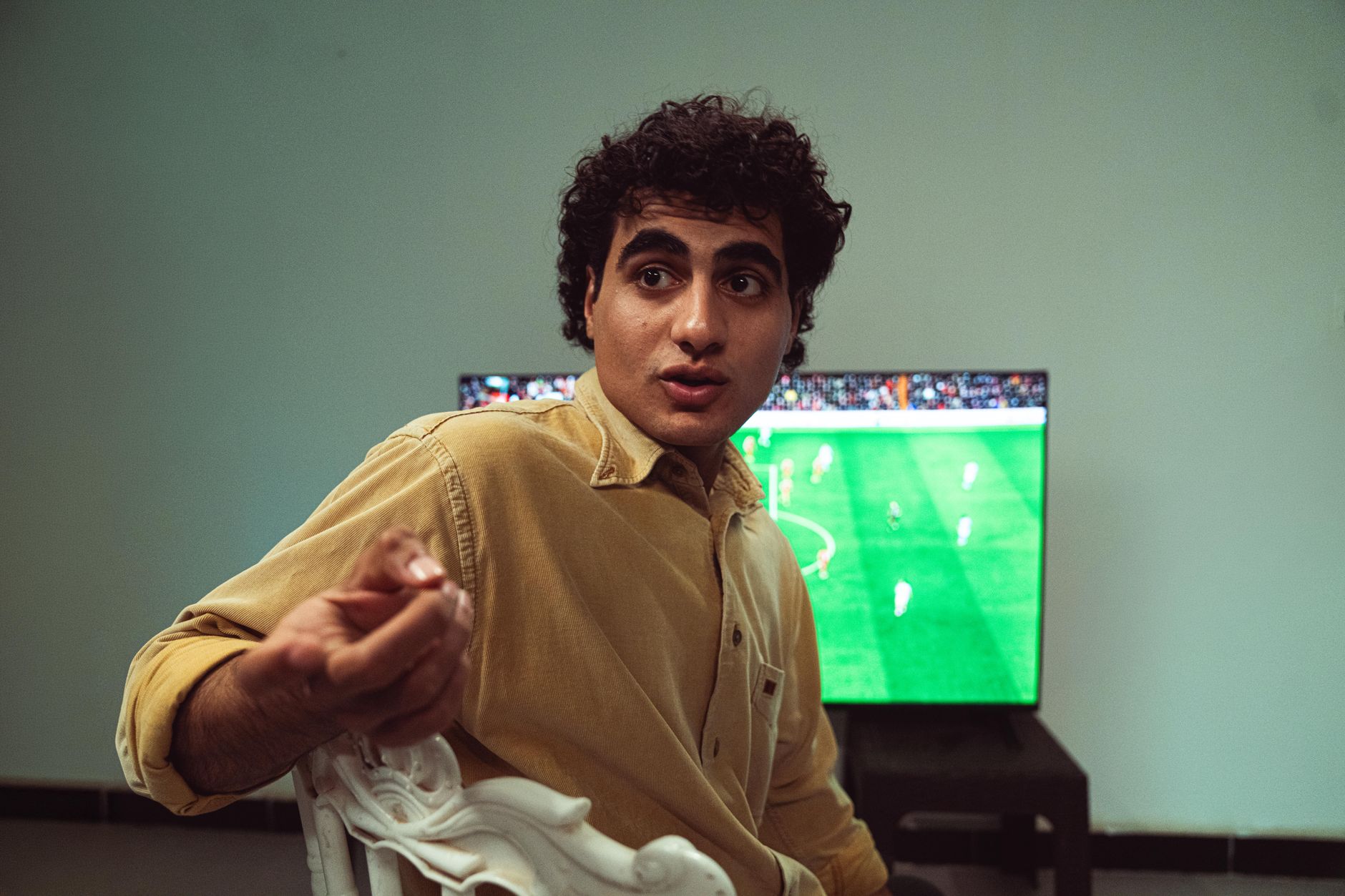
The 2026 NFL season kicks off with Amazon’s Thursday Night Football streaming in 1080p HDR at 60fps, and ESPN’s new multicast feature lets cord cutters watch four college games simultaneously. Yet here’s what most streamers miss: even a $2,000 Mini-LED TV ships with picture settings designed for dimly lit prestige dramas, not fast-moving athletes in bright daylight. If you’re still using “Standard” or “Cinema” mode for sports, you’re watching muddy uniforms, ghosting footballs, and halftime shows that look like they were filmed through fog.
Getting your smart TV picture settings for sports dialed in isn’t about buying new hardware. It’s about understanding which factory defaults actively sabotage live action—and which hidden menus unlock the clarity broadcasters are already sending to your screen.
Why Your TV Hates Live Sports Out of the Box
Manufacturers optimize default modes for showroom floors and streaming apps. “Standard” mode cranks brightness to compete with fluorescent lights. “Cinema” or “Movie” modes lock in warm color temperatures and deliberately dim the screen for 24fps film content. Neither knows what to do with a 60fps soccer match where the ball travels 60 feet in under two seconds.
The three biggest culprits:
- Judder reduction and motion smoothing (often called MEMC, TruMotion, or MotionFlow) insert fake frames that create the “soap opera effect” and add 30-50ms of input lag—fine for The Bear, disastrous for judging whether a receiver’s foot dragged in bounds
- Local dimming aggression set too high crushes bright field details into darkness; set too low, you’ll see blooming halos around scoreboards and yard-line markers
- Color space mismatches where your TV receives Rec. 2020 HDR signals but displays them in Rec. 709 SDR, making grass look neon and skin tones appear sunburned
NBC’s 2026 Premier League coverage and Fox’s 4K World Cup streams both use HLG HDR specifically designed for live broadcast. Your TV needs to recognize and render this correctly, not force it into a preset meant for Netflix originals.
The Core Smart TV Picture Settings for Sports You Need to Change
Every major brand hides these under different names, but the underlying principles hold across Samsung, LG, Sony, TCL, and Hisense 2026 models.
Disable the Soap Opera Effect Entirely
Find your motion settings menu. On Samsung: Picture > Expert Settings > Auto Motion Plus. On LG: Picture > Advanced Settings > TruMotion. On Sony: Motion > Motionflow.
Set this to “Off” or “Custom” with both sliders at 0. For sports specifically, you want native frame presentation without interpolation. The 60fps broadcast signal already contains every frame your eye needs; fake frames add blur and artifacts on quick direction changes.
The exception: some 2026 TVs offer “Black frame insertion” or “OLED Motion Pro” at 60Hz or 120Hz. This strobes the backlight briefly between frames to reduce sample-and-hold blur without creating fake imagery. Try it for hockey or Formula 1—sports with constant horizontal panning—but watch for brightness loss of 30-40%.
Calibrate Brightness for Daylight Viewing
Sports happen during the day, even on your screen. Most “Cinema” modes target 100 nits, roughly a dark room. Daytime NFL games broadcast at 200-400 nits in SDR, and HDR sports peaks hit 1,000+ nits.
Set your backlight/OLED light to 70-85 for daytime viewing, 50-60 for evening. Keep contrast at 95-100 to preserve highlight detail in white jerseys and sun-bleached fields. Set brightness/black level so that just barely crushes the darkest bars in a test pattern—sports rarely contain true blacks, and raising this slightly prevents muddy shadow detail in player piles.
Lock Color Temperature to “Warm2” or “Expert”
“Cool” or “Normal” color temperatures add blue that makes grass look artificial and sky gradients band noticeably. “Warm2” (or “D65/6500K” on Sony) matches broadcast standards. If faces look too yellow initially, your eyes will adapt within 10 minutes—broadcasters didn’t color-correct for “Cool.”
For saturation/tint, default 50/50 is usually correct. Only adjust if grass appears distinctly lime or magenta against a known reference (like a team’s verified hex color codes).
Sport-Specific Tweaks for 2026 Broadcasts
Not all sports move the same way on screen. Your smart TV picture settings for sports should adapt slightly by season.
Football and Soccer: Prioritize Shadow Detail
Late afternoon games create harsh sideline shadows. Raise gamma to 2.2 or BT.1886 (not 2.4) to prevent players disappearing into dark areas. If your TV has “Shadow detail” or “Black optimizer,” set to “Low” or “Medium”—high settings reveal noise in compressed streams.
For Amazon’s 2026 TNF streams specifically: their X-Ray stats overlay uses pure white text. If you see blooming around numbers, your local dimming is too aggressive. Drop it one notch or switch from “High” to “Standard.”
Basketball and Hockey: Tame the Brightness
Indoor arenas blast LED boards and ice reflections. Enable “HDR tone mapping” set to “Static” or “On” rather than “Active” if available—active tone mapping can flicker as camera angles change rapidly. On SDR feeds, contrast enhancer should stay “Off” to prevent blown-out court markings.
Hockey’s white ice against black puck demands maximum motion clarity. This is where black frame insertion shines if your TV supports it at 120Hz native.
Baseball and Motorsports: Minimize Panning Stutter
These sports feature slow, continuous camera movement across detailed backgrounds. Set judder reduction to 0 but consider blur reduction at 2-3 (on custom motion settings) if your TV offers separate controls. This maintains natural motion without creating the soap opera effect.
For Formula 1’s 2026 season streaming on F1 TV Pro at 50fps (European broadcast standard), ensure your TV handles 50Hz input without 3:2 pulldown judder. Most 2026 smart TVs auto-detect, but verify in Settings > General > HDMI > Input Signal Plus or equivalent.
The Streaming-Specific Gotchas Most Guides Ignore
Cord cutters face compression artifacts that cable subscribers rarely see. Live sports streaming at 8-15 Mbps (ESPN+, Peacock, Paramount+) introduces macroblocking in fast motion and color banding on gradients.
Combat this without hardware changes:
- Sharpness at 0-5 (never above 10). Artificial edge enhancement exaggerates compression artifacts around players in motion
- Noise reduction “Off” for 4K streams, “Low” only for 720p/1080p legacy feeds. Modern noise reduction softens legitimate detail
- Digital clean view or MPEG noise reduction should remain off for all sports—these features date to standard-def broadcast and smear fine detail
For simultaneous viewing (ESPN’s 2026 multicast, YouTube TV’s multiview), each window receives reduced bitrate. Drop your TV’s sharpness to 0 and consider noise reduction on “Low” specifically for these modes—compression artifacts multiply with divided bandwidth.
Automating the Switch: Never Toggle Manually Again
The real cord cutter move? Stop changing settings before every game.
Most 2026 smart TVs support AI picture mode detection or can be automated through:
- Samsung’s SmartThings: create routines that switch to “Sports” picture mode when ESPN, Fox Sports, or NFL apps launch
- LG webOS 26: “Game Optimizer” now includes sports profiles; set app-specific defaults in Settings > General > AI Service > AI Picture Pro
- Apple HomeKit + Shortcuts: if you use Apple TV 4K, build a shortcut that launches your sports app and sends CEC commands to switch TV input and picture mode simultaneously
For Android TV and Google TV devices, Button Mapper or Tasker can trigger picture preset changes based on app launches. It’s 30 minutes of setup that saves hundreds of manual toggles per season.
Your Game Day Checklist
Before kickoff, confirm these five settings:
- Picture mode: “Sports,” “Standard,” or custom calibrated profile—not “Cinema,” “Filmmaker,” or “Vivid”
- Motion processing: Off or custom with interpolation at 0; BFI optional for hockey/motorsports
- Color temperature: Warm2/D65/6500K
- Local dimming: “Standard” or “Low” for LED/Mini-LED; “Medium” for OLED to prevent near-black crushing
- Sharpness/noise reduction: 0-5 and Off, respectively
The 2026 sports streaming landscape delivers more live action in higher quality than ever before. But broadcasters can’t reach through your screen and adjust your TV. Mastering smart TV picture settings for sports closes the gap between what they’re sending and what you’re actually seeing—no new hardware required, just the right knowledge applied before the opening whistle.