How to Sync Smart Lights with TV: The 2026 Setup Guide for Immersive Viewing
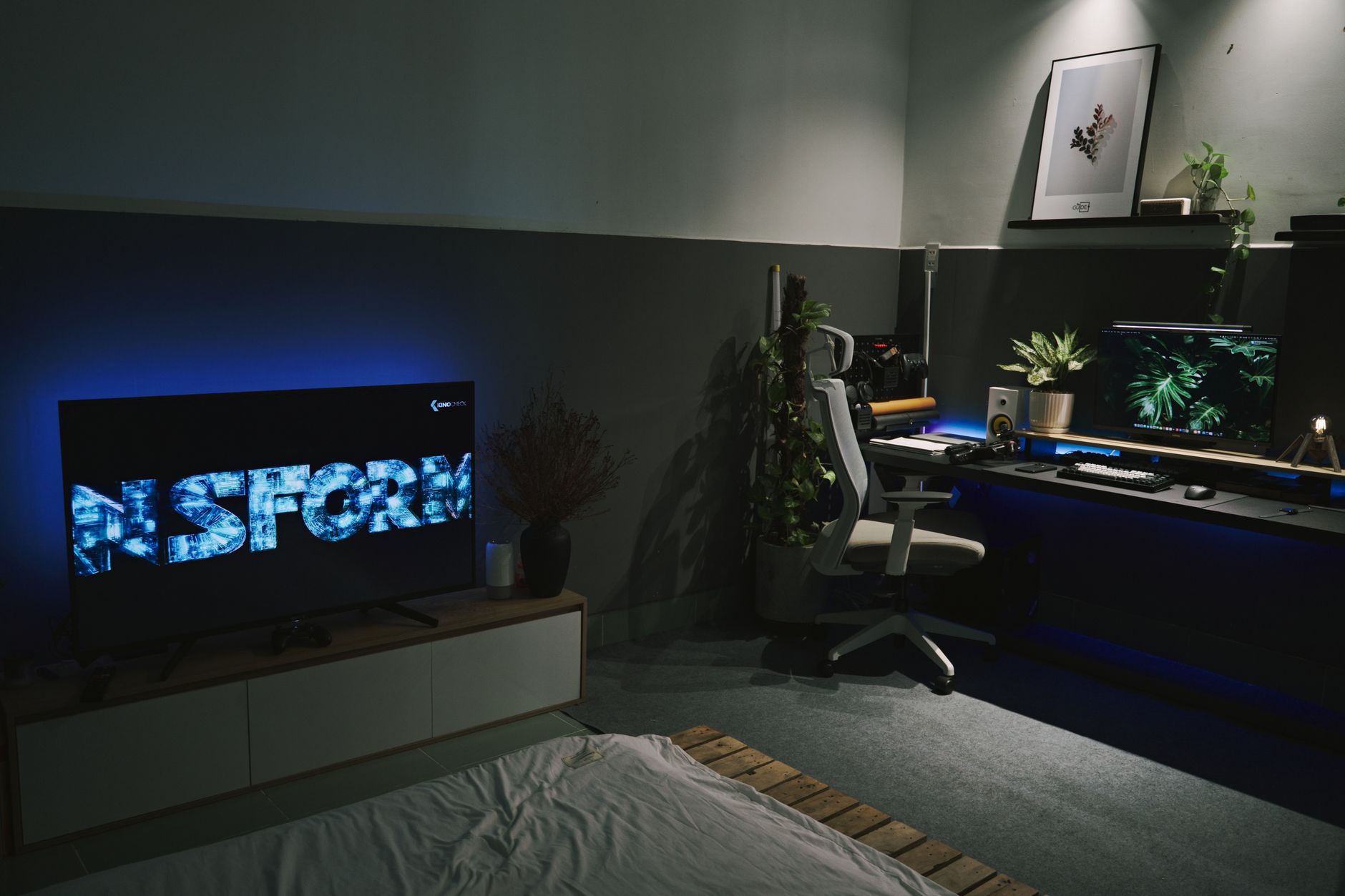
Football season is back, fall premieres are dropping weekly, and suddenly everyone remembers why they wanted that immersive lighting setup in the first place. If you’ve been watching The Last of Us or Monday Night Football on a plain black screen surrounded by darkness, you’re missing half the experience. Learning how to sync smart lights with TV isn’t just about pretty colors anymore—it’s about reducing eye strain during those 3-hour streaming marathons and making your living room feel like a premium theater without the $10,000 renovation.
The good news? The technology has matured dramatically since the early days of laggy camera-based systems. Whether you’re running a 2026 OLED with HDMI 2.1 or a budget TCL from last year, there’s a sync solution that fits your setup and technical comfort level. Here’s exactly how to make it happen.
Understanding Your Sync Options (And Why Latency Matters)
Before you buy anything, you need to know there are three distinct ways to sync lights with your TV, and they are not created equal.
HDMI Sync Boxes (like the Philips Hue Play HDMI Sync Box or Govee AI Sync Box) intercept the video signal between your streaming device and TV. These offer near-zero latency—typically under 10ms—because they’re reading the actual HDMI signal. This is the gold standard for gaming and fast-action sports where a half-second delay ruins the effect.
Camera-Based Systems (such as the Govee Immersion Kit or Nanoleaf 4D) mount a small camera on top of your TV to watch the screen. These work with any content source, including built-in smart TV apps, but historically suffered from 100-200ms lag. The 2026 models have improved significantly with AI processing, but you’ll still notice slight delays during rapid scene changes.
Screen Mirroring Apps (like the Philips Hue Sync app for PC or Samsung’s SmartThings integration) capture your computer or phone screen. These are free or cheap but only work with content played through that specific device—useless if you’re watching Netflix directly through your TV’s built-in app.
The critical spec to check: Look for “latency” or “delay” measurements under 50ms for movies, under 20ms for gaming. Anything higher creates a distracting echo effect where the lights change after the scene has already shifted.
How to Sync Smart Lights with TV Using HDMI Sync Boxes
If you want the most responsive setup, an HDMI sync box is your best bet. Here’s the optimal configuration for 2026 hardware.
Step 1: Position Your Lights Correctly Mount LED light strips or gradient light bars behind your TV, approximately 2-3 inches from the edge. For a 65-inch TV, you’ll want a strip that covers at least 80% of the perimeter. The Philips Hue Play Gradient Lightstrip (65-inch or 75-inch versions) remains the benchmark, but Govee’s Envisual TV Backlight T2 offers comparable performance at $60 less.
Step 2: Connect the HDMI Chain Plug your streaming device (Apple TV 4K, Roku Ultra, or gaming console) into the sync box’s HDMI input, then run a second HDMI cable from the sync box output to your TV. Crucial detail: If you have a 2026 TV with HDMI 2.1 features like 4K/120Hz or VRR (Variable Refresh Rate), verify your sync box supports pass-through for these features. The Philips Hue Play HDMI Sync Box 8K (released late 2025) handles 8K/60Hz and 4K/120Hz, but older 4K models will bottleneck your PS5 or Xbox Series X.
Step 3: Configure the Sync App Download the manufacturer’s app (Hue Sync, Govee Home, etc.) and set your intensity preferences. For movies, set brightness to 40-60% to avoid distraction. For gaming, bump it to 80-100% for maximum immersion. Enable “Audio Sync” if you want lights to pulse with sound during music videos or concerts.
Pro tip: If you use an AV receiver or soundbar with eARC, connect your streaming devices directly to the sync box, then run HDMI from the sync box to your TV, and use optical audio or a separate HDMI cable from the TV’s eARC port to your audio system. This prevents audio sync issues that plague some HDMI splitter configurations.
The Camera Method: Syncing Built-In Smart TV Apps
Here’s the scenario: You cut the cord completely and watch everything through your TV’s built-in Google TV, Roku, or Tizen OS. An HDMI sync box won’t help because there’s no external device to intercept. Enter camera-based systems.
The Govee Immersion Kit Wi-Fi (2026 model) uses a 1080p camera with AI color matching that mounts on top of your TV. It works with literally anything displaying on the screen—Netflix, antenna TV, even your security camera feed.
Setup process:
- Mount the camera centered on your TV’s top bezel, angled down at the screen
- Stick the LED strip to the back of the TV using the included adhesive (clean the surface with isopropyl alcohol first—2026 TVs have textured backs that reject cheap adhesive)
- Calibrate using the Govee app: You’ll see a grid overlay where you drag corners to match your TV’s dimensions
- Set the “White Balance” to match your wall color (crucial for accurate colors—if you have gray walls, standard white light looks blue)
The catch: Camera systems struggle in bright rooms. If your living room gets direct sunlight during day games, the camera may misread colors. Position bias lighting behind the TV to create a consistent backdrop, or close the blinds during critical viewing.
Advanced Automation: Taking Sync Beyond Simple Mirroring
Once you have basic syncing working, 2026’s smart home ecosystems let you create scenes that would have required professional installers five years ago.
Circadian Rhythm Integration Pair your synced lights with Apple HomeKit or Google Home routines. Set your bias lighting to automatically shift from cool white (6500K) during daytime sports to warm amber (2700K) for evening movies. This reduces blue light exposure before bed while maintaining the immersive effect.
Genre-Based Automation Using Samsung SmartThings or Home Assistant, create automation triggers based on content type. When your TV detects a horror movie (via HDMI-CEC signals or manual trigger), dim the sync intensity to 30% and shift the color palette toward deep reds and blues. For nature documentaries, boost saturation to make greens and ocean blues pop.
Multi-Room Sync If you have an open-concept living space, extend the sync beyond the TV wall. Philips Hue’s “Entertainment Areas” let you include ceiling lights and floor lamps in the sync zone. During Stranger Things finale season, your entire room can pulse with the Upside Down’s red lighting, not just the TV perimeter.
Gaming Mode Optimization For PS5 and Xbox Series X gamers, enable “Game Mode” in your sync app. This reduces the color processing complexity to minimize input lag. The 2026 Govee AI Sync Box actually includes a dedicated “FPS Mode” that prioritizes speed over color accuracy—essential for competitive Call of Duty sessions where every millisecond counts.
Troubleshooting Common Sync Issues
Even with 2026’s improved technology, you’ll likely hit these snags:
Problem: Lights flicker or show rainbow colors during dark scenes. Solution: This is usually HDCP (copy protection) handshake issues. Ensure all your HDMI cables are certified Premium High Speed or Ultra High Speed (48Gbps). Cheap Amazon cables cause 90% of these glitches.
Problem: Audio and video fall out of sync when using the sync box. Solution: Enable “Lip Sync Correction” in your TV’s settings (usually under Sound > Expert Settings). If using a soundbar, set it to “Pass-through” mode rather than processing the audio signal.
Problem: Colors look washed out or inaccurate. Solution: Calibrate the white point. Hold a white piece of paper against your TV screen while displaying a white image, then adjust the sync app’s color temperature until the light strip matches the paper. Most people set this too blue (8000K+) when 6500K (D65 standard) is actually correct for video content.
Conclusion: Start Small, Then Expand
Learning how to sync smart lights with TV transforms passive watching into an experience that rivals commercial theaters—without the sticky floors and overpriced popcorn. Start with a single gradient lightstrip behind your television and an HDMI sync box if you use external streaming devices, or a camera system if you’re a built-in app purist.
Once you see how Dune: Part Three looks with the desert oranges bleeding off your screen onto your walls, you’ll understand why this technology has moved from gimmick to essential home theater gear. The best part? You can expand gradually. Add light bars beside your TV next month, integrate voice control through Siri or Google Assistant later, and eventually automate the entire room to respond to your viewing habits.
Ready to ditch the dark room? Pick up a sync-compatible light strip this weekend—your eyes (and your Instagram followers) will thank you when premiere night rolls around.